

Showing all posts tagged "Evernote"
How to Backup Your Evernote Notebooks (Just in Case)

One of Evernote’s selling points is that all your notes, clippings, and other bits and bytes are stored both on the Evernote servers and your local device. If that’s not enough data security for you (and it shouldn’t be), read on as we show you how to properly backup your Evernote notebooks.
Why Do I Want To Do This?
There are several reasons why you would want to (and should) backup your Evernote notebooks. The principle reason is because the current Evernote arrangement isn’t actually a backup system, it’s a syncing system. Your data is synced, rather efficiently at that, between your local devices and the Evernote servers. Syncing isn’t backup though and, despite the fact that there are safeguards built into the Evernote software against this, in the absolutely worst case scenario that can befall any synchronized system, the remote file store can be wiped and the local file store can follow. The only way you can ever be absolutely beyond-a-doubt certain that your Evernote notebooks are really safe is if you back them up yourself.
Now, if even you’re not worried about Evernote causing you a headache (and they certainly have a good record for data reliability and security), you should worry about yourself. There is no system in place powerful enough to protect you from accidentally or misguidedly deleting your own stuff. Once you drop the hammer on your own data, Evernote (like any other automated synchronization tool) isn’t going to judge you, it’s just going to carry out your orders and wipe your data. Without a backup, there’s no restoring a notebook you trashed last week.
Read along as we highlight how you can manually backup your Evernote notebooks, both back up and sync them to cloud-based storage services outside of Evernote, and dedicated backup services focused exclusively on backing up cloud-based data services like Evernote.
What Do I Need?
The only absolutely critical component of today’s tutorial is an installed copy of Evernote’s desktop application for either Windows or OS X.
Even if you’re not regularly a desktop app user, you’ll still need it. Without it, there’s no way to take advantage of backing up a local database or exporting files.
Setting Up Manual and Automated Backups
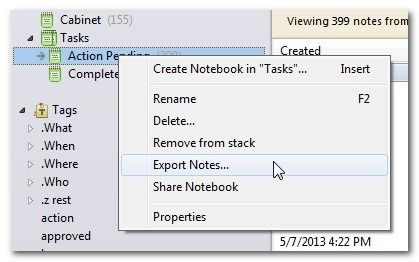
There are two ways to back up your Evernote data independently of the Evernote server. You can export your notebooks from the Evernote application, and you can back up the actual Evernote database files on your computer. There are distinct advantages and disadvantages to both methods, so let’s take a closer look.
Exporting your notebooks: Within the Evernote application there is a pretty straightforward export/import functionality. You can right click on any notebook in Evernote, select “Export Notes…" and you will be presented with an Export dialog box.
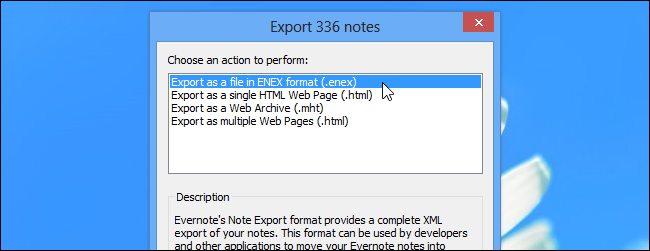
Not only can you export the notebook in Evernote’s native format, but you can also export the contents of your notebook in more open standards like plain old HTML. When exporting into formats besides Evernote’s ENEX format, you can click on “Options…" to select which note attributes you want to be included in the exported files.
Where the in-app export feature really shines is when it comes time to restore data. You can import the exported notebook as a wholesale replacement for the missing notebook, or you can import the notebook as a kind of temporary holding pen (where you can then root around and look for the individual notes you accidentally deleted).
Manually backing up your Evernote database: If you wish to outright copy everything that is synced with the Evernote servers including notebooks, tags, etc. then exporting won’t cut it. You will need to backup your local Evernote database files. The database files are located here:
Windows: C:\Users\[Your Username]\AppData\Local\Evernote\Evernote\Databases
OS X: /Users/[Your Username]/Library/Application Support/Evernote
You can manually copy all the file found there to a safe location (the most important file is the one labeled yourEvernoteUsername.exb) and then restore them into Evernote at a later date.
There is a distinct downside to this technique. Unless you’re looking to completely back up and completely restore your data, it’s not particularly user-friendly. You can’t, for example, simply open up a single notebook, save a single note, and then keep on working. You’re stuck either restoring from the backup or keeping your current database; there is no way to only import select items.
Automating the backup process: There’s no way to automate the export-from-Evernote workflow, but you can easily automate backing up the local Evernote databases. Whether you use the native Windows backup tool or you use a third-party backup tool like CrashPlan, you can check to make sure the directory where your Evernote database is stored is part of the backup routine.
Backing up attachments with cloud-based services: As we stressed in the beginning of the tutorial, syncing is not a true backup as the syncing system can fail and possibly destroy the synced files. That said, if you like to add layers to your data storage plan, there’s a very clever way to integrate cloud-based storage with Evernote.
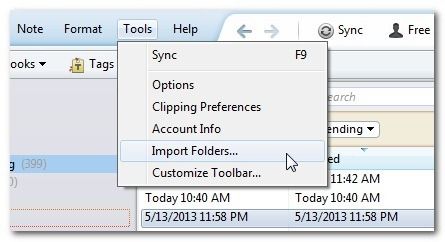
Start off by making a folder within the root directory of your cloud-storage service (e.g. /My Documents/My Dropbox) called Evernote Import. Once you’ve created the folder, load up the Evernote desktop application. Within the Evernote desktop application click on Tools -> Import Folders.
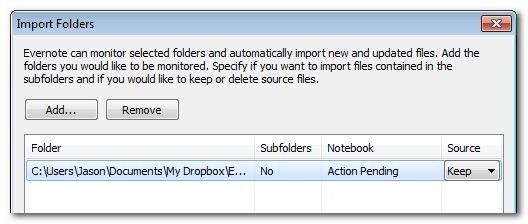
Select the Evernote folder from your Dropbox directory. Select the Notebook you want to use and make sure the Source option is set to “Keep" in order to preserve the files in the folder upon import.
While this doesn’t backup your existing attachments, it does create a handy safe zone for your imported files. From now on, when you go to import documents, images, or other files into Evernote, place them into Evernote Import folder. Evernote will import them but leave them intact within that folder. In such a fashion, an imported PDF will exist simultaneously on your computer, on the Evernote servers, on the Dropbox servers, and (if you include your Dropbox folders in your local backup routine) within your local backup archive.
Even if you don’t go to the trouble of setting up the Import folder, Dropbox is still a great place to stash extra copies of your Evernote exports.
Armed with these tips and tricks, you can manually and automatically backup your existing Evernote notebooks as well as enjoy a bonus layer of data security by syncing your Evernote attachments and imports to the cloud.
Have a backup tip or trick of your own to share? Join in the conversation below to help your fellow readers ensure they have the smoothest backup routine on the block.
Posted on May 1st, 2015
Evernote Anticipates, Delivers Content in Push to be Synthetic Brain - Venture Capital Dispatch - WSJ

- October 2, 2014, 7:12 PM ET
Evernote Anticipates, Delivers Content in Push to be Synthetic Brain
ByLizette Chapman

- Evernote CEO Phil Libin
- Evernote
In its continuing quest to change the way people work–and vanquish Microsoft Office in the process–Evernote Corp. announced new features to move the productivity app closer to becoming your synthetic brain.
The 20 or so announcements, made Thursday at Evernote’s annual conference in San Francisco, comes as the seven-year-old startup surpasses 100 million users world-wide.
The software has paid and free versions that can store and organize text, voice, pictures and other items in the cloud and then makes them searchable and shareable from any device.
In what is Evernote’s first major pass at anticipatory computing, it announced its “context" feature would now surface and present relevant external content.
The feature is supported by a number of partnerships, including with Dow Jones & Co.–the publisher of The Wall Street Journal–TechCrunch, FastCompany, PandoDaily and LinkedIn.
The feature presents content that could be helpful to users before they anticipate needing it. For example, if a user is writing about expanding operations in China, related articles and research from The Wall Street Journal and Dow Jones-owned Factiva could be presented along the bottom of the screen.
“People are not just reading The Wall Street Journal to be informed. It’s so they can bring it into the workplace," said Mr. Libin, referring to both physical and digital workplaces.
Evernotes also introduced a “chat" feature which allows users to have conversations within the virtual workplace without ever leaving the app.
Along with a handful of other technology updates, the Redwood City, Calif.-based startup announced its market for physical goods would continue to grow. The market, which sells scanners, paper planners, messenger bags and other office and productivity items, was met with skepticism when Evernote introduced it last year.
Mr. Libin said the marketplace was an important step for the company as it looks to integrate with wearables in addition to the arrangements it now has on the Pebble, Galaxy Gear, Sony SmartWatch and Google Glass.
“With where things are going with wearable devices and smartwatches, the people that don’t understand the physical world won’t succeed," Mr. Libin said.
The market generated $12 million in revenue during the first 12 months of operation.
Based in Redwood City, Calif., and backed with more than $250 million in venture funding, Evernote has said it is considering going public in a few years.
Write to Lizette Chapman at lizette.chapman@wsj.com. Follow her on Twitter at @zettewil
Copyright 2014 Dow Jones & Company, Inc. All Rights Reserved
This copy is for your personal, non-commercial use only. Distribution and use of this material are governed by our Subscriber Agreement and by copyright law. For non-personal use or to order multiple copies, please contact Dow Jones Reprints at 1-800-843-0008 or visit
Posted on December 1st, 2014